


Installation Guide for Ansys Customers
Version: 2026-R1
This guide describes how to install and configure QuantumATK on Windows and Linux. Note that you can skip some of the points if they do not apply in your case. We will describe the conditions for that in each section.
If you experience any problems during the installation, first search the User Forum to see if a solution is posted there. If not, file a case with Ansys Customer Support and Help Desk or contact Synopsys QuantumATK support (quantumatk-support@synopsys.com).
QuantumATK can be expected to run out-of-the-box on Windows and Linux platforms (Windows 10+11 and all recent Linux distributions). In some cases, on Linux, there are a few libraries that may need to be installed, but this can always be done post-installation. Future support for platforms is outlined in the Synopsys Compute Platforms Roadmap
Access to a License Server
You need to ensure that you have access to a license server. If there is already a license server running at your site, you may skip the section on installation of a license server. If you do not have access, you need to install a license server yourself to use the license. Proceed to either the guide for Windows or Linux, depending on the OS of the machine where you wish to install the license server.
Note
For Network or Nodelocked Licenses: Purchased licenses are issued as Network licenses. That means that a central server will handle the license, and any computer which can connect over the network to the server can check out a license and run the software. Evaluation licenses are nodelocked. The software is then constrained to running on a particular computer only.
Download QuantumATK
Go to the Ansys Download Center page and sign in with your Ansys customer account. Locate the QuantumATK product in the Primary Packages section and download the latest version for your platform.
Linux only: Download and use Synopsys Installer
In order to install EST images on your Linux system, a working installation of Synopsys Installer is required which can be downloaded from Ansys Download Center page. The main reference should be Synopsys official documentation, here we summarize the most common steps:
Download the latest version of Synopsys Installer from the Ansys Download Center page.
Inside the folder you will find a file named SynopsysInstaller_vX.X.run (where X.X is the version), execute it in a terminal with
./SynopsysInstaller_vX.X.run.The process will ask for the desired installation path and will quickly install Synopsys Installer at that location.
Execute Synopsys Installer:
If the text-based interface is sufficient, the installation is completed. Synopsys Installer executable is located at
<installation_path>/installerand can be executed in a terminal.If the graphical interface is desired, execute
<installation_path>/installer -guiand make sure a window is shown. If there appears any error related to a missinglibXss.so.1library (possible on a minimal installation), proceed to install the libXScrnSaver package.
The text-based and graphical interface will provide the same information and ask the same questions. There is also a batch mode (or unattended mode) available, to install EST images from a command line with limited human interaction. This mode can be useful when automating the installation on several machines and/or several products at the same time. For more information, see below the paragraph Batch Install on Linux.
Note
The EST image files should not be renamed, otherwise Synopsys Installer will not recognize them as valid product files. Therefore, the original name of the installation file downloaded from Ansys Download Center page should always be preserved.
Installing QuantumATK
Windows
The installation file downloaded from Ansys Download Center page is a standalone executable. Right-click and choose “Run as administrator”, as QuantumATK must be installed with Administrator rights. Follow the step-by-step instructions to read and approve the license agreement, choose the installation directory, etc. From the final page of the installer you can open QuantumATK, and/or the license configuration tool.
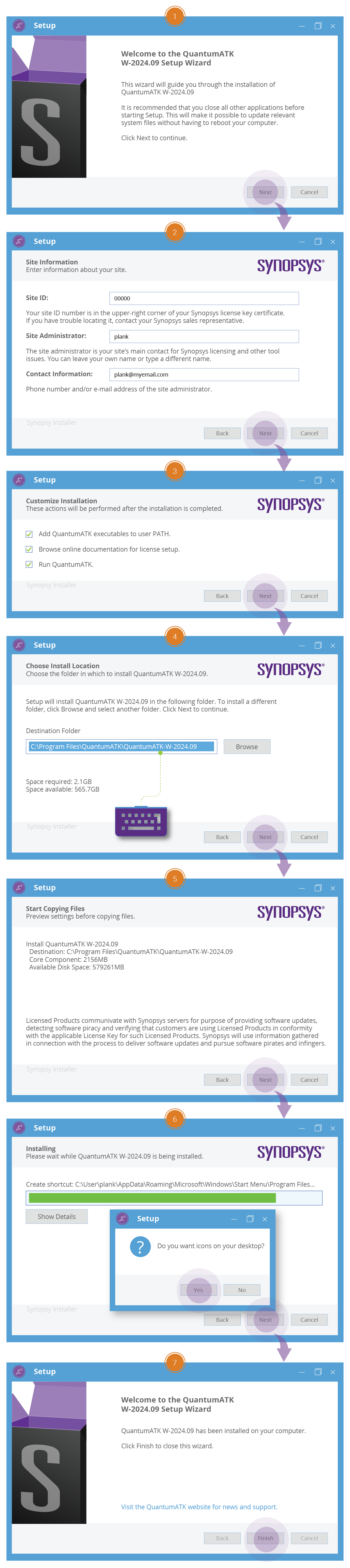
Linux
The installation file downloaded from Ansys Download Center page is an EST image, with file extension .spf.
A working installation of Synopsys Installer is needed, in order to install an EST image.
If you do not have that available, jump to section Linux only: Download and use Synopsys Installer for additional instructions on this.
You can run the Synopsys Installer in text mode with the installer command, or in graphical mode with the installer -gui command.
The installer will guide you through the installation process by asking for the site information (site ID, administrator and contact), the location of the EST image (the .spf file cited above), the installation path and possibly additional options.
Note
On machines without a dedicated GPU and vendor-provided drivers, which might be the case for Linux and Virtual Machines, some users experience issues with the 3D graphics. For these machines, we recommend choosing “Software rendering” when installing and upgrading to a higher quality graphics setting after installation, if possible.
Silent Install on Windows
A silent install will not allow any of the customization steps of a graphical install apart from the choice of installation path. Open a CMD shell with administrator rights, it is important to use a CMD shell because the next step might fail in a PowerShell shell. Inside the shell run the following command:
.\path\to\QuantumATK-installer.exe /S /LICENSE="I accept"
The above command will install QuantumATK in the default location, you can choose a custom location with an additional command line option: /D=C:\path to\custom\location.
Note that this must be the last option on the command line and must not contain any quotes.
Batch Install on Linux
The main reference should again be Synopsys official documentation, but we summarize here the most common steps. In order to use the batch installer, a configuration file is needed. An initial template can be generated running the following command from the folder containing the EST image:
batch_installer -list -o <template_name>
Where <template_name> is the desired name for the configuration file and batch_installer is an executable shipped as part of Synopsys Installer.
The command above generates a template configuration file that can be customized.
The post-install arguments’ values can be modified as needed, since the default values are aimed at the interactive installation process.
Once the configuration file is ready, the batch install can be started with the command:
installer -batch_installer -config <template_name>
If the command complains about a missing -target argument, it can be provided followed by the chosen installation path.
Here is an example of how the generated configuration file will look.
SourceDir: /synopsys/downloads
SiteID: 000
SiteAdmin: admin
SiteContact: admin@your_company.com
PRODUCTS: quantumatk
RELEASES: Y-2026.03

quantumatk, Y-2026.03 {
  DESCRIPTION: Synopsys QuantumATK
  TARGETDIR: /home/user/synopsys
  POSTARGVALUE: softwareRendering (no)
  POSTARGVALUE: addToPath(yes)
  POSTARGVALUE: openLicenseDoc(no)
  POSTARGVALUE: runProgramAfterInstall(no)
}
Note
The batch installer will keep track of previous installations in a hidden folder at <installation_path>/.installer.
If there is a warning about an existing installation, but the actual QuantumATK installation folder no longer exists, try removing this hidden folder and execute the batch installer again.
Configuring the QuantumATK License
QuantumATK ships with a license utilities tool which can be used to connect to a license server.
The tools are located at <installation_path>/licensingclient/linx64 on Linux and <installation_path>\licensingclient\winx64 on Windows.
The LicensingSettings executable located herein can be used to configure the license settings via the graphical user interface or command line.
If you intend to use the graphical interface please refer to the video guide or follow the steps below:
Open the LicensingSettings tool by double-clicking on the executable
Click on the Add button to add a new license server
Enter server port and hostname
Save the current settings and close the tool
Alternatively, you can use the command line and run the following command to add a license server:
./LicensingSettings fnp server add --input <port>@<hostname> --mode user
Please refer to Ansys Licensing guide for a detailed manual of the license utilities tool.
Tip
An alternative option is to set an environment variable to point to the license server when running atkpython in the command line.
The license system will then automatically pick up the license server without any further configuration.
The environment variable is called ANSYSLMD_LICENSE_FILE and can be set to <port>@<hostname>.
It supports a list of license servers, separated by a semicolon on Windows and a colon on Linux.
- Windows Powershell:
$env:ANSYSLMD_LICENSE_FILE = "<port>@<hostname>"- Linux Bash:
export ANSYSLMD_LICENSE_FILE=<port>@<hostname>
System Requirements
For additional information about the technical characteristics of the system or platform that you want to install the software on, see the System Requirements section.
Using QuantumATK from the command line
The installer will not add the QuantumATK executables to the system PATH on Linux and Windows.
The effect is that the newly installed QuantumATK executables are not available from the command line by default.
You can still run QuantumATK from the command line by using the full path to the executable, e.g. <installation_path>/bin/quantumatk or <installation_path>/bin/atkpython.
You can also opt to manually add <installation_path>/bin to the system path after the installation.
For example, on Linux using the Bash shell, one can add export PATH=<installation_path>/bin:$PATH to the ~/.bashrc file.
You can also use the QuantumATK environment script (activate_env) to prepare your command line environment. Users accustomed to Python virtual environments will find this approach familiar.
More on the QuantumATK environment script can be found in the Command Line Usage with QATK Shell Environments section.
Troubleshooting
See Troubleshooting for common issues and their solutions.